
Quick steps apply multiple actions at the same time to email messages. This helps you quickly manage your mailbox. For example, if you frequently move messages to a specific folder, you can use a quick step to move the message in one click.
How to create Quick Steps in Outlook
1. Click the button in the bottom right corner of the Quick Steps section of your tool bar.

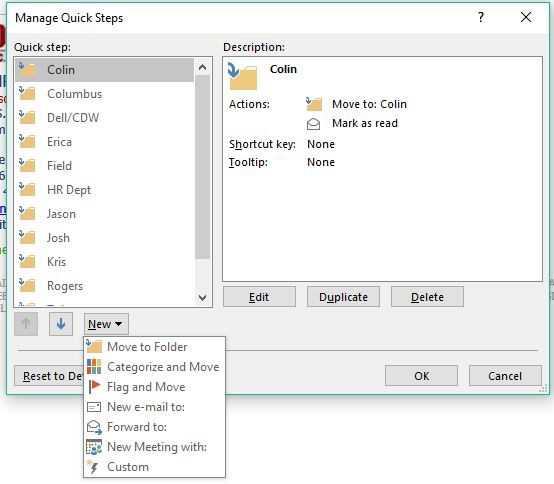
2. Click New and choose whichever option you are wanting. For this example, I will choose Move to Folder
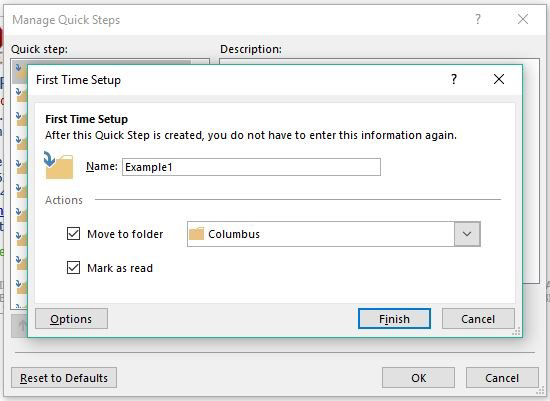
3. Give your Quick Step a name, choose which folder you want the email to go to, and click Finish when you’re done
4. Click OK on the Manage Quick Steps screen. Now you will see your new quickstep in your list.

Comments
0 comments
Article is closed for comments.