
EMAIL SIGNATURE INSTRUCTIONS & GUIDELINES
If you prefer video instructions, please click here Online Video Instructions
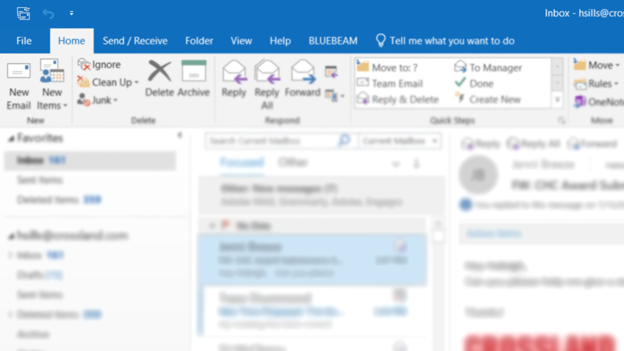
- Open Outlook, go to File then go to Options
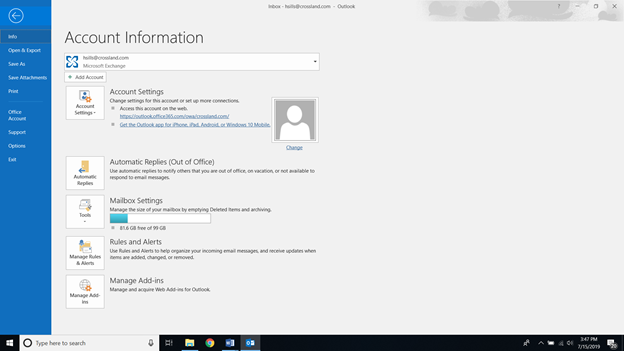
- Then go to Options
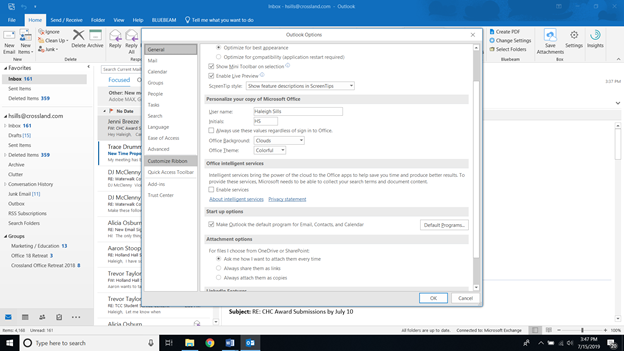
- Click on Mail
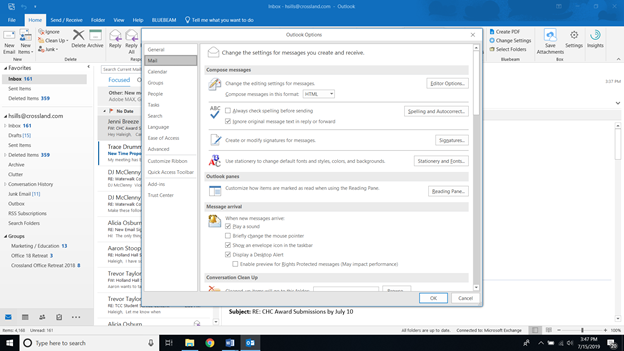
- Click on Signatures
- Click ‘New’ and name your signature when prompted something like ‘Crossland 2019’
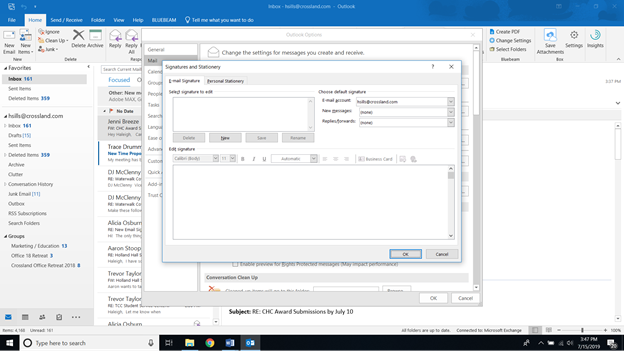
- Copy the Email Signature below, from logo down to the core values
7. Paste the text into edit signature
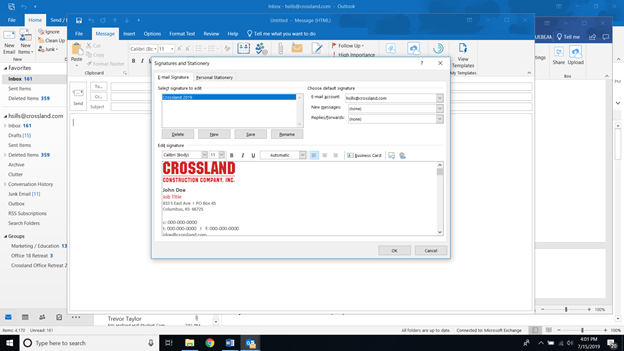
- Please select Crossland 2019 for New Message & Replies/Forwards.
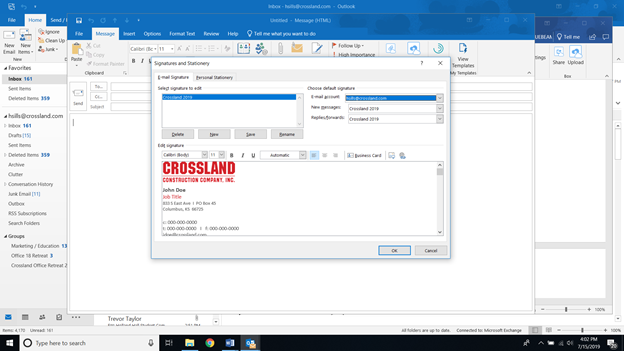
- Customize your name, job title, office address, office phone, cell phone, fax (if applicable), email, to and click ‘OK’ to save.
- Add any additional contact information, such as office extension or credentials
- Delete any fields you do not use
- Delete old signature.
If you have any questions on how to set up your new email signature, please contact the Click the support button on the bottom of this page.
A Few Do’s and Don’ts
- When you customize the signature with your personal information, please be sure to adhere to the existing layout, formatting, and font attributes.
- Do not alter the font size or color of your contact information.
- Do not add unnecessary additions to the email signature, such as inspiration quotations, icons, or images.
- Do not alter the size of the logo or replace; use what is provided.
- The email background should be all white (no graphics or colors of any kind).
Comments
0 comments
Article is closed for comments.