
Windows 10
Change default browser (or any other program) via Windows 10 Settings app
This explains how to change default programs in Windows 10 – and you can follow the same procedure to change any other program too
Windows 10 sets Microsoft Edge as the default browser for opening web links. The example tells you how to change it to Firefox. You can change it to anything you want, provided the related application is installed on the device. For example, if you wish to change it to Chrome, you must have Chrome installed on the device so that you can select it in the list of default programs – both in PC Settings and Control Panel method.
To change the default browser:
Press Win+I to open the Settings app and select System. Next, scroll down to Default Apps in the left pane and click on it.

When you click on Default Apps in the left pane, the contents of right pane will change to list popular protocols and will look like the image below:

Scroll down in the right pane to Web Browser and click on it
You will see the list of installed browsers.
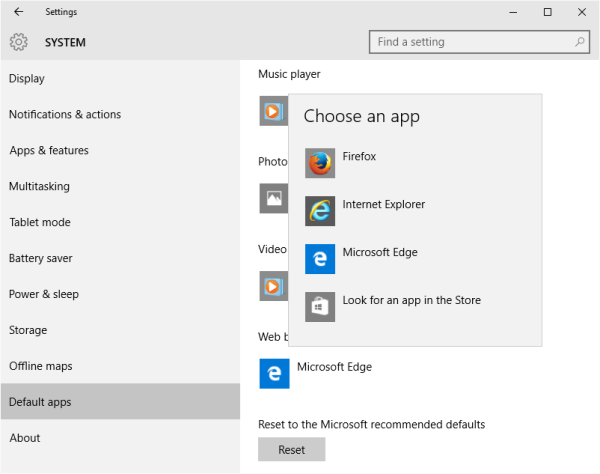
Click on the browser you want to set as the default browser and exit.
That is all you need to do. The next time the system needs to fire up a browser, it will open the default browser you set.
Change default programs via Windows 10 Control Panel
If the default protocol that you wish to change is not available in the Settings app, you can use Control Panel to change the default programs in Windows 10.
The method remains the same it was in earlier versions. Via Win+X menu, open the Control Panel and click on Default Programs.
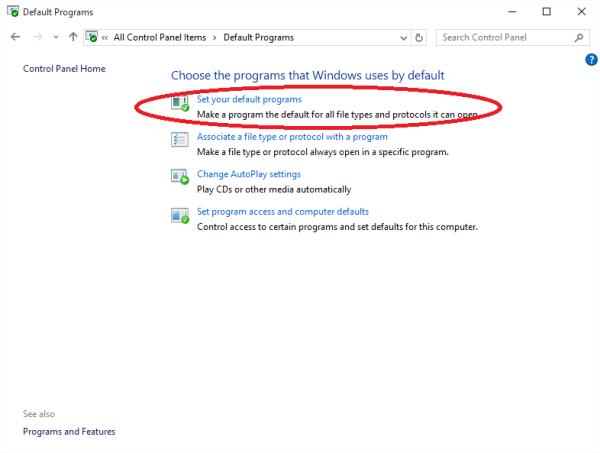
Click on the first option saying Set Your Default Programs.
Control Panel will find the installed apps and programs and display the list. You will see the list of installed program in the left pane and the right pane will contain a description of program, along with options that let you set the program as default for files/protocols it can handle
Select the program that you wish to set as default, and then click on Set this Program as Default. This will set the program as default for files and protocols it can handle.

WINDOWS 7
Use this option to choose which programs you want Windows to use, by default.
If a program does not show up in the list, you can make the program a default by using Set Associations.
- Open Default Programs by clicking the Start button
and then clicking Default Programs.
- Click Associate a file type or protocol with a program.
- Click the file type or protocol that you want the program to act as the default for.
- Click Change program.
- Click the program that you want to use as the default for the file type you selected, or click the arrow next to Other Programs to show additional programs. (If you don't see Other Programs, or your program is not listed, click Browse to find the program you want to use, and then click Open. If no other programs are installed that are able to open the file type or protocol, your choices will be limited.)
If you don't see the program you want to use as the default, click the arrow next to Other Programs to see a list of programs available on your computer. - Click OK.
Comments
0 comments
Article is closed for comments.